

Continuing with our OWASP series we start here with the TryHackMe OWASP Top 10 Severity 1 Injection task.
If you haven’t yet, check out the Injection overview written up for HTH. In this example, the sample site set up by THM is vulnerable to some sort of injection attack. When we open the site up, we get this brand-spankin new web app from Evil Corp.:

Before we begin answering the questions, we can look at the page source and we find the following code (helpfully highlighted by the room’s author):
<?php

    if (isset($_GET["commandString"])) {
        $command_string = $_GET["commandString"];

        try {
            passthru($command_string);
        } catch (Error $error) {
            echo "<p class=mt-3><b>$error</b></p>";
        }
    }
?>
ben, the room’s author, gives a great pseudocode walkthrough of what’s going on in the code above that you can read if you complete the room. What needs to be pointed out here is the passthru() command, which executes an external program and returns raw output. In other words, it allows an external program to be executed right on to the database and outputs raw data directly into the browser. This is a recipe for injection!
From here, we can just run through the questions with explanations and further pictures.
1. What strange text file is in the website root directory?
The first thing that you should note is that the website provided literally has “shell” in its name. If you don’t know what a shell is, that’s okay: a simple definition is a program that allows a user to interact with the operating system (which in turn interacts with the hardware through other components). There are technically two types of shells: if you have worked in Linux, you will have likely come into contact with the first types of shell: Bash or the terminal; PowerShell and Windows Command Line are also shells called “command-line interfaces.” It is also certain that you have come into contact with another type of shell: the Graphical User Interface, or “GUI” though you might call it your “desktop.”
If you’ve come into contact with a CLI like Bash, you know that you can enter in commands in order to see data in the computer’s system. This site is no different. As such, we can enter ls; in order to see the files in the website’s root directory:
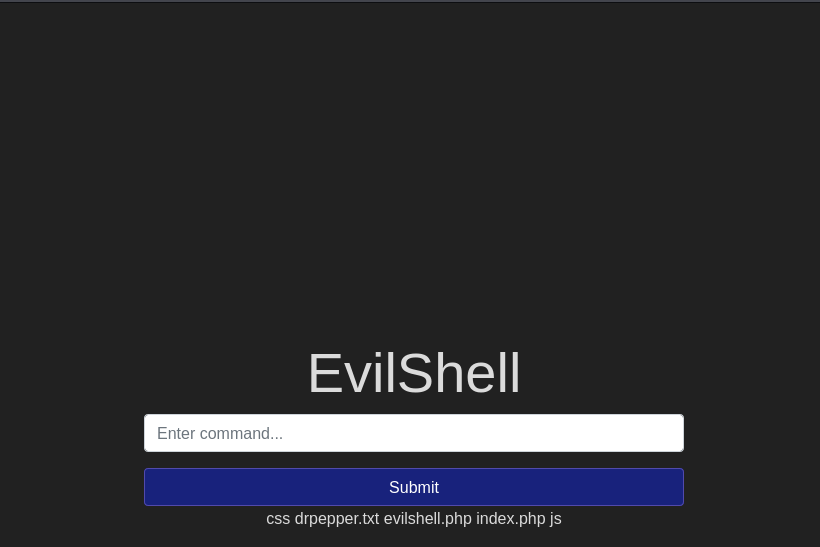
Once we enter the command, we see the “strange text file” the question is asking for: drpepper.txt.
2. How many non-root/non-service/non-daemon users are there?
One really useful CLI command that can be used not only here but across Linux systems in general is the “cat” command. The cat command, short for “concatenate” does a lot more than just combining files (as indicated by its name). It also allows you to see the contents of a file.
But which file should we be looking at here? A little bit more outside knowledge is worthwhile here: of the items returned with the -ls; command in question 1, none of them appear to be particularly useful in telling us how many non-root/non-service/non-daemon users are there. The useful bit of knowledge that is useful here is the existence of the /etc/passwd file, which will be on every Linux system. The /etc/passwd file is essentially a text file that contains information about all users that may log into the system.
So let’s cat into the /etc/passwd file and we get:
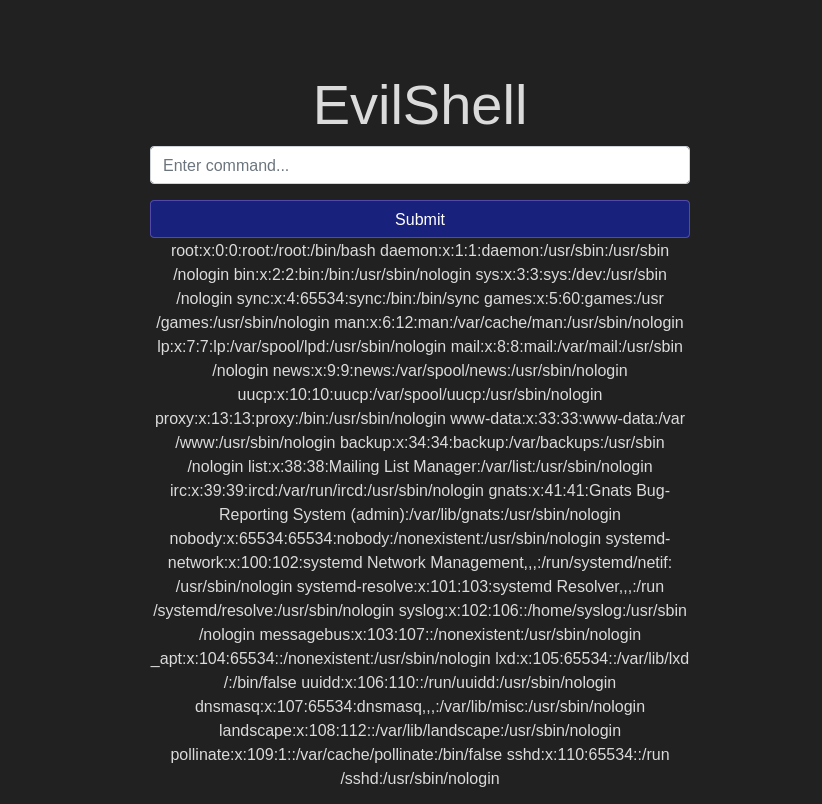
Whoa, what are we looking at here? That looks like a lot of random gibberish.
It’s not though. What it actually is are a bunch of users on the system (including root, service, and daemons) and a bunch of reading through to see if any of those users are non-root, non-service, and non-daemon. I’m not giving you the answer to this one: it looks like most of the work has been done.
So we move on to #3.
3. What user is this app running as?
The first picture above actually has a hint for this. As you can see in that image, beneath the “Submit” button is “www-data”. That isn’t there by default, though. Instead, it happened when we entered the command whoami into the shell. Whoami does exactly what it sounds like: it tells you which user the computer sees you as at that time.
Once you enter the command, the URL will change slightly to look like:
<machine ip address>/evilshell.php?commandString=whoami
Again, the answer is up top in the first image.
4. What is the user’s shell set as?
This one requires us to add a bit more to the command we used in question 2. Recall that we went tromping through the /etc/passwd file to get a list of users to see if any were non-root etc. Now we need to see which of those users is our user and what shell that user is using (sorry for all of those uses).
But what are we going to combine it with? Well we know that the user we are looking for is in question 3 and image 1: www-data. How are we supposed to look through those to see which of those in the listing is our user?
This is where the grep command becomes useful. grep lets you search text, combing through the given files or folders for lines containing a match to the search query. So, for example, if we wanted to find the user “rapsca11ion” (shameless self-plug) in the user file (/etc/passwd) we would put:
user@user-comp:~$ grep rapsca11ion /etc/passwd
Which will return whatever file(s) have the string “rapsca11ion” in them.
Here, we are going to want to take our original command — cat /etc/passwd — (because we are still in the root directory and need to move into that file) and, once there, tell the computer to return to us any user with “www-data” in the name. We do so by using a pipe (|):
cat /etc/passwd | grep www-data;
Which will return your answer:
www-data:x33:33:www-data:/var/www:/usr/sbin/nologin
5. What version of Ubuntu is running?
We know from the first few questions that the app is using some sort of Linux: since we are able to run Bash shell commands (which, to be technically correct, is also available for Windows but is more likely to be used on a Linux machine) there is likely a distro of Linux being used. Popular distributions (distros) are Ubuntu, Linux Mint, and Kali Linux; you can get a taste of Kali Linux if you are a subscriber to THM and run the Kali Linux machine.
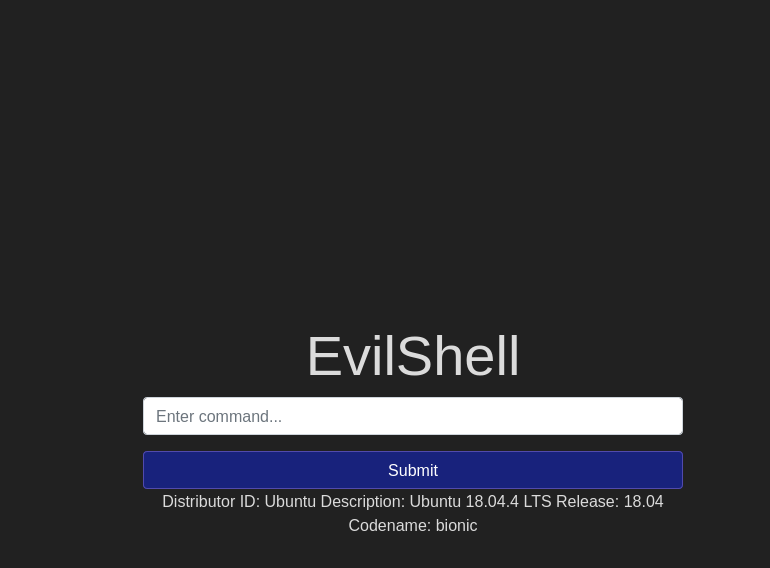
Now we just need to know how to find the version of Ubuntu the app is running. For that we can use the lsb_release command. “lsb” is the initialism for “Linux Standard Base”; it gives you information about the Linux distribution in use, including the version it is running. As long as the lsb-release package is running on that distribution, it will return the needed information; if not, there are other ways to find it.
Luckily, when we type in lsb_release -a (the -a provides more information), we get:
6. Print out the MOTD. What favorite beverage is shown?
First: what the hell is “MOTD”? Time to power up the ‘ole google machine to discover that “MOTD” means “Message of the Day.” With more research, we find that MOTD can be found in /etc/update-motd.d.
However, when you try to cat to /etc/update-motd.d, nothing happens. What now?
Luckily, TryHackMe gives us a hint: “00-header.” Huh? Little tip for when a hint is given like this and you don’t know what it means: try tacking it on to the end of the command:
cat /etc/update-motd.d/00-header
and you get:
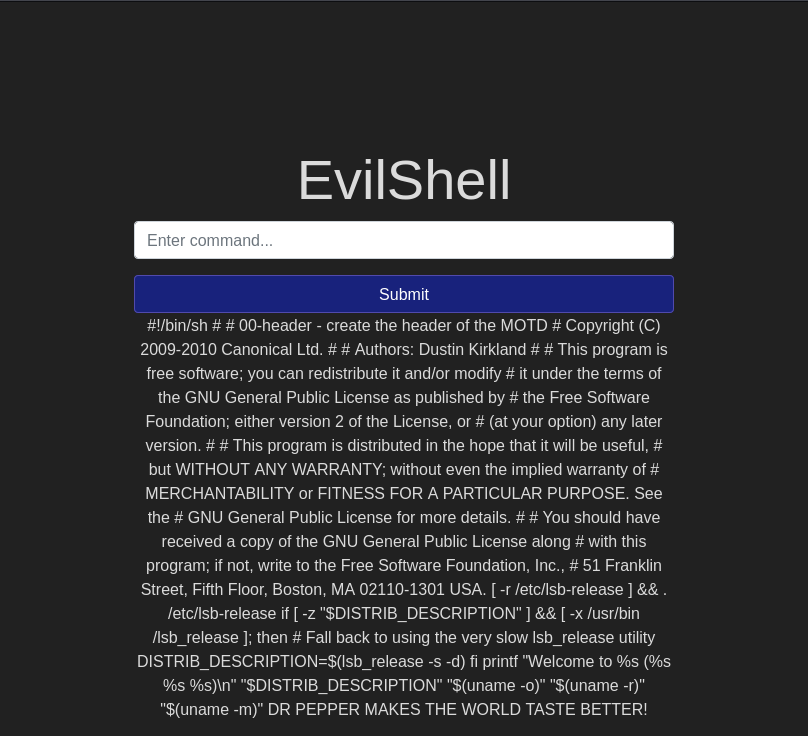
And look at that! We see the header information for the MOTD on this machine. Read through it and see if you can find the “favorite beverage” that is shown in the question. I have faith you can.
 HakstheHax
One thought on “THM: OWASP Top 10 Severity 1/Injection Walkthrough”