

This is the first part of the Investigating Windows series on TryHackMe. Completion of this room as well as parts 2 and 3 reward you with a badge.
Over the next few days and starting today, I will be releasing walkthroughs for each part of the Investigating Windows series. I hope these posts provide guidance for those who are having trouble with these rooms.
For the first part of the Investigating Windows series, I am just going to walk through the questions and demonstrate how to get your answers. As per the TryHackMe walkthrough post requirements, I will not be providing answers: I will only be providing hints, tips, and directions.
Room Introduction
The room’s introduction are as follows:
This is a challenge that is exactly what is [sic] on the tin, there are a few challenges around investigating a windows machine that has been previously compromised.
Connect to the machine using RDP. The credentials the machine [sic] are as follows:
Username: Administrator
Password:letmein123!
Please note that this machine does not respond to pin (ICMP) and may take a few minutes to boot up.
Question 1: What’s the version and year of the windows machine?
Click Start > Settings (the gear icon) > System > About. You can also get to this by opening the command prompt and typing “systeminfo.”
Question 2: Which user logged in last?
EventViewer is the best source to go to in order to see user login history. User logins are included in EventViewer under Windows Logs > Security (in the menu on the left). Once you open this, go to the menu on the right, click “Filter Current Log…” and filter for Event ID 4672.
Why 4672? Because that is the Event ID used by Windows for successful logins.

Once you filter for 4672, you’ll notice that there are still a lot of events to sift through. To speed it up, click the Date & Time column header (in the center-top window) to put the events in order. Go to the latest event and you’ll have your answer to this one.

Question 3: When did John log onto the system last? Answer format: MM/DD/YYYY H:MM:SS AM/PM
Open command prompt and use the netuser command:

Question 4: What IP does the system connect to when it starts?
This question requires us to find the events that occurred at startup. The best way to see such events is to go to the Registry Editor (“regedit”). Once there, go to: HKEY_LOCAL_MACHINE > SOFTWARE > Microsoft > Windows > CurrentVersion > Run.
Why this registry key? In order to see what IP the system connects to, we need to see what the system does when it starts. The instructions for start-up are contained, inter alia, in this registry key.

Question 5: What two accounts had admin privileges (other than the Administrator user)?
For this answer we can turn to Computer Management. Once there, click “Local Users and Groups” and then “Users.” Here you will see a list of all users. Simply double click the names, at which time another window will open. Click the “Member Of” tab and you will find the other two users.
Question 6-8: What is the name of the scheduled task that is malicious? What file was the task trying to run daily? What port did this file listen locally for?
We are going to answer these three questions together. To start, in order to see scheduled tasks you can open — surprise, surprise — Task Scheduler. Once there, open Task Scheduler Library where you can see all tasks that are scheduled to run.

Luckily, there are only a handful of events here, but you are going to want to investigate each one. The first event “Check logged in” just runs a check to see if anyone is logged in: pretty benign it seems. However, the next, “Clean file system,” looks a bit suspicious after initial investigations. Ostensibly, the task provides for a schedule file system clean 3 minutes prior to the login check. Yet when you click the “Actions” tab, you see that the scheduled event isn’t actually cleaning anything: it’s instead running a PowerShell script:
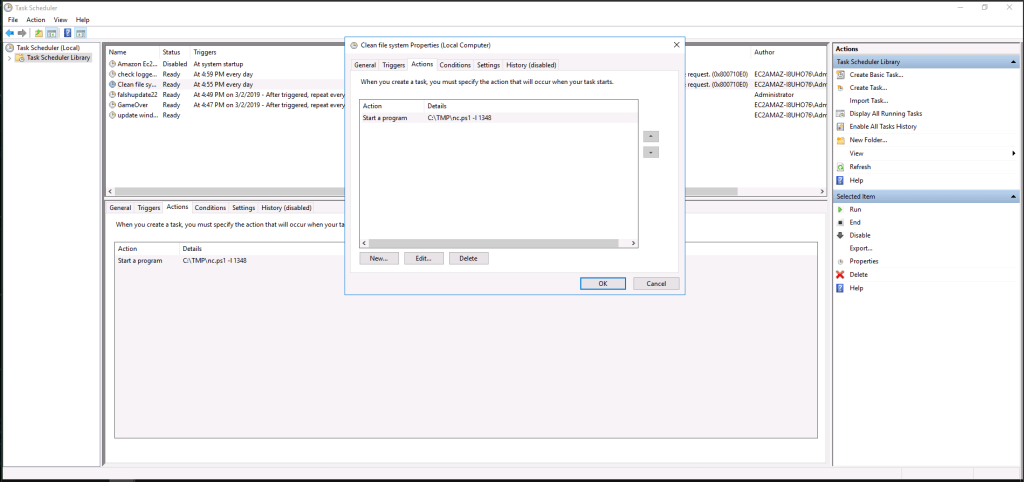
We can break this script down to see what it does relatively easily. Getting the more minor detail out of the way, the C:\TMP\ portion of the script shows where the script is being run out of. The more important aspect of the script is the nc.ps1 -l 1348. If you have any experience with hacking, you’ll likely recognize “nc”: that’s a netcat listener. .ps1 is the PowerShell extension. -l 1348 shows that it’s listening to port 1348. At times, listening on port 1348 may not be a big deal: 1348 is used to share multimedia and netcat can be used for other activities. Here, though, it appears suspicious.
Before we move on to the next questions, there is one last thing I want to point out here in the scheduled tasks, though this one won’t come up for a while. Another task that is scheduled is labeled “GameOver”: we can say with near certainty that this is not a normal Windows task, meaning it wasn’t hijacking the legitimate Clean File System task like the PowerShell script was, but it is something we should remember for later.
Question 9: When did Jenny last login?
We can use the netuser command again:

Questions 10 & 12: At what date did the compromise take place? What tool was used to get Windows passwords?
Now we can really examine that “GameOver” task schedule.


Let’s dig into the information provided in the center-bottom window. The event action is “Start a program” and the Details provide: C:\TMP\mim.exe sekurlsa::LogonPasswords > C:\TMP\o.txt. A couple of things here demonstrate that this is malicious. First, “LogonPasswords > C:\TMP\o.txt” shows that this script is skimming passwords and putting them in a temporary file, titled “o.txt.” The second, and more important, is “C:\TMP\mim.exe”: mim.exe is an executable that is part of the Mimikatz attack framework, as detailed in JOE Sandbox Cloud.
Question 11: At what time did Windows first assign special privileges to a new logon?
Going back to the question we skipped, for question 11 we are looking, essentially, a special logon. Windows handles special logons with a specific Event ID of 4672.
With that information in mind, go to Event Viewer, filter for 4672. This should leave you with around 300 events still to sift through, so we need to limit the events as well (unless, of course, you want to sift through all of these). It is here that we should take into account what we know so far. In question 10, we found the time and date that the compromise took place: in order for the compromise to work, the attacker would have had to get heightened privileges in order to get the scheduled tasks running. The attacker would have had to get heightened privileges somehow. We can therefore eliminate most events that come before that date and time.
There are other ways to further narrow the results, but once you go to that date and time in Event Viewer, the first event that fits will be provide your answer.
Question 13: What was the attackers external control and command servers IP?
First, it will be useful to know what a control and command server is. In general, when an attacker hacks a machine that is connected to a network, they will set up a server between them and the target machine: the attacker will send the commands to the C2 server, which will then feed it to the target machine. The C2 server as well serves as a quick repository for any data exfiltrated from the target machine, though the attacker will generally remove the data from the C2 server and place it somewhere more secure.
In general, an attacker will oftentimes add the C2 server IP address to the hosts file: if you catch the attacker before they are finished and covered their tracks, you may be able to see it there. Here, it looks like the attacker wasn’t quite finished or was sloppy in covering their tracks. So open File Explorer > This PC > Local Disk (C:) > Windows > System32 > drivers > etc.
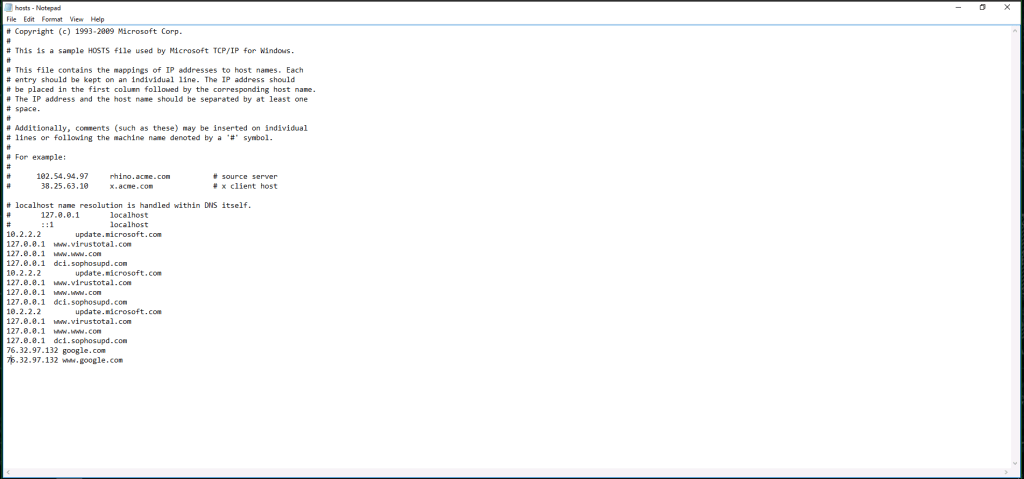
Now this is going to be the only that I do this, but I am not going to blur out the answer to this question because it is buried amongst the other IP addresses at the bottom of the hosts file and I will walk you through finding the answer. What you need to do here is walk through those IP addresses. One hint to help you find the right IP address: 127.0.0.1 is the local host address. Other than that, just google the IP addresses.
Question 14: What was the extension name of the shell uploaded via the servers website?
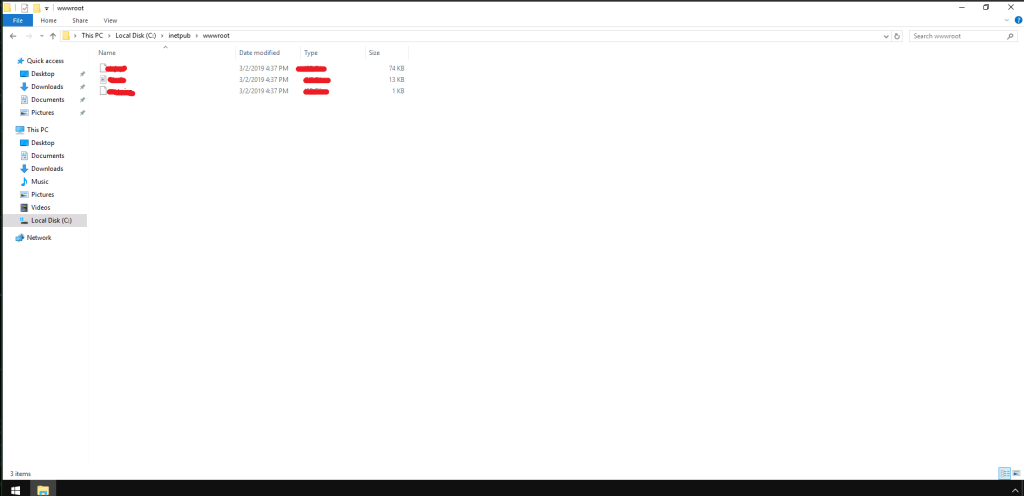
For this question, a little bit of prior knowledge will be useful. The question is asking the name of the file extension of the shell uploaded via the server’s website. This is a Windows machine, so it is highly likely that the web server in use is IIS. We can check the accuracy of this deduction by checking for the existence of a certain folder in the C: drive: inetpub. According to Stackify, inetpub “is the folder on a computer that is the default folder for Microsoft Internet Information Services (IIS). The website content and web apps are stored in the inetpub folder — which keeps it organized and secure.”
Checking the C: drive on the machine, we do indeed find that folder. Open it up and you should see another folder titled “wwwroot.” This is the virtual directory for the IIS server. Open that and you’ll see two extensions: I’m sure you’ll find the answer.
Question 15: What was the last port the attacker opened?
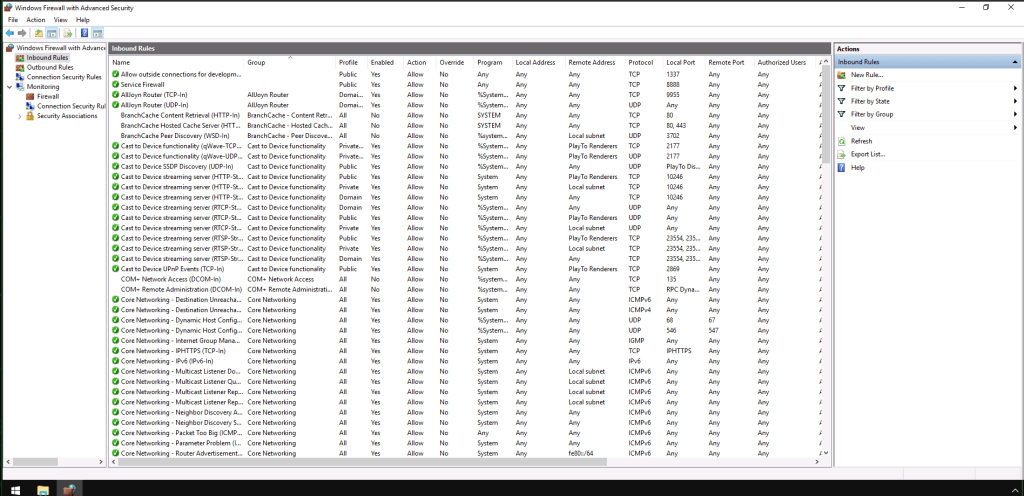
This question comes with a hint: “Firewall.” So let’s open the machine’s firewall.
Again, think about what’s going on here. The attacker is going to need to communicate with this computer through the server, so the simplified picture would be attacker talks to C2 server > C2 server sends it to victim computer > and then back in the next direction. Therefore, the attacker, once in to the target computer and wanting to keep his tracks covered while getting whatever he wants, will set a rule that allows for inbound connections through the firewall.
We can therefore open the firewall, then open “Inbound Rules” and see what the last connection was.
Conclusion
That wraps up the first room in the Investigating Windows series. Check back this week for parts 2 and 3!
 HakstheHax
One thought on “TryHackMe: Investigating Windows, Part 1”