

We’re back today with a walkthrough for the second room in the Investigating Windows series. Later this week, we will post the Investigating Windows 3.x room so that you can get that shiny TryHackMe Badge.
Introduction
The room’s instruction are as follows:
Note: In order to answer the questions in this challenge you should have completed the following rooms:
Tips for LOKI:
- When you run the Loki scan I suggest you save the output to a log file so you can reference it to answer the questions below.
- The scan may take a while to complete. Make sure the prompt is always moving. It’s an indicator that the scan is still running. You can kill the scan after you see warnings for ntds.dit files.
Connect to the machine using RDP.
The credentials of the machine are as follows:
Username: Administrator
Password: letmein123!
Your machine’s IP is: Machine_IP.
If you’re using Remmina to RDP, set the Color Depth to RemoteFX (32 bpp).
Question 1: What registry key contains the same command that is executed within a scheduled task?
From a remote point of view, this question seems entirely ambiguous. Worry not, though, because the machine you are examining now is very close to the one you examined in the first Investigating Windows room, just with some different tools.
And with that in mind, you should remember that we saw something suspicious in Task Scheduler that helped us answer a few questions: “GameOver.” In short, we opened Task Scheduler, looked at Actions for GameOver, and saw that it was a scheduled event that ran Mimikatz and saved the scraped login information to a file in the TMP folder.
We just need to take this to the next step: because we know that this script is running in Task Scheduler, we also know it is automatic. And since it is automatic, it will show up elsewhere: Autoruns, which is a sysinternals program.
Go ahead and open Autoruns (it will be in the Tools folder on the machine’s desktop). Give it a moment to load more information and look for the file we discussed above. It will be listed under a registry key: that’s your answer.

Questions 2 & 3: What analysis tool will immediately close if/when you attempt to launch it? What is the full WQL Query associated with this script?
These two we are going to try to answer together and in order to do so we are going to explore a few topics.
First, you should have noticed that Loki was installed on this system. What is Loki? It is, essentially, an upgrade to THOR.
“But that doesn’t get us any closer to understanding what it is and how to use it, Rap!” you scream, and while I know you are actually imaginary (because no one reads this blog and I’m writing it just as a way to teach myself), this is a good question! A good definition comes directly from the product page:
LOKI is a free and simple IOC scanner, a complete rewrite of main analysis modules of our full featured APT Scanner THOR. IOC stands for “Indicators of Compromise.” These indicators can be derived from published incident reports, forensic analyses or malware sample collections in your Lab.
Nextron Systems, https://www.nextron-systems.com/loki/
So let’s just cut to the chase with what we know: LOKI scans your system and reports back anything whose code matches an Indicator of Compromise. It’s like an open source antivirus that just finds any IOCs that are on your system (except it won’t automatically remove the malicious or suspicious files like modern AV solutions will).
So let’s run LOKI: open command prompt, traverse to C:\Users\Administrator\Desktop\Tools\loki_0.33.0\loki, and enter:
loki.exe > outputloki.txt
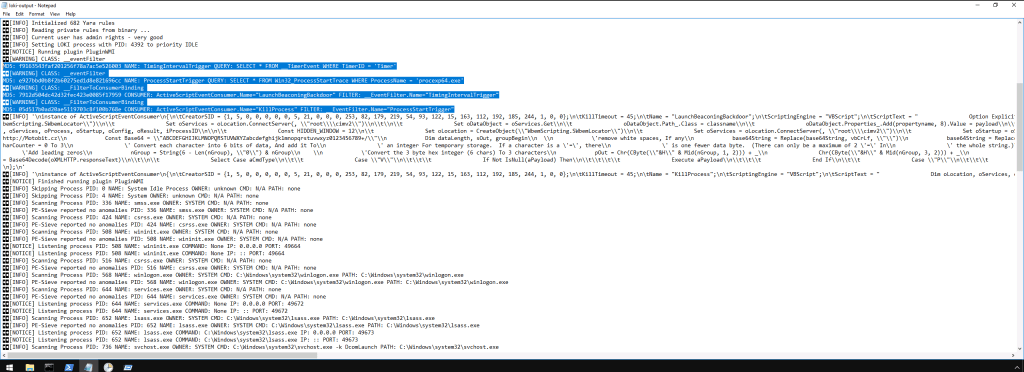
Note that LOKI takes a few minutes to run. Get up, stretch, have a cup of coffee, and come back in ten minutes — it should be done then.
Once it is finished, scroll through the results and you should find a block that looks like that in the picture above. If you don’t have experience with Windows internals or forensics, this at first glance would look like SQL queries. If you thought this, you aren’t far from the truth! This is WQL!
To understand WQL, you have to know WMI. According to PandoraFMS:
WMI (Windows Management Instrumentation) is a technological invention of Microsoft, whose purpose is to take care of the different operational environments of Windows.
The Windows Management Toolkit (WMI) consists of a set of extensions of Windows Driver Model, which provide an operating system interface so that its components give us information and different types of notifications.
WMI is Microsoft’s implementation of web-based business management standards (WBEM), the common information model (CIM) and the Distributed Management Task Force (DMTF).
WMI allows script languages (such as VBScript or Windows PowerShell) to manage Microsoft Windows personal computers and servers, both locally and remotely.
That last part lends itself pretty well to a TL;DR: you can use scripting languages to manage your workstations, networks, servers, etc. To do so, you use WQL, which is Windows’ implementation of SQL for WMI.
With that in mind, let’s look at big picture details here to see what is going on: first, the first two events in the block are queries (indicated by the QUERY at the start [duh]). It is querying the TimingIntervalTrigger (a process that lets you run a function on a schedule) and the location where the process “procexp64.exe” (Process Explorer) begings. The second set are events: they do two things here. The first sets up a beacon which communicates to an outside server. The second will kill the procexp64 program, which would be able to alert you to the fact that LaunchBeaconingBackdoor is running.
With that, I have provided you with enough context clues to get the answers to 2 and 3.
Question 4: What is the script language?
Using the same LOKI block we examined for questions 2 & 3, scroll down just a bit more and you should find your answer in the details beneath. Just remember that WQL can be written using VBScript, PowerShell, and other scripting languages.
Question 5: What is the name of the other script?
In the description to find the answers to questions 2 & 3, I mentioned a process that is running in relation to another process that will kill a third process that would alert you to the fact that the first process is running. In other words, you should have found a process in the events that kills another process. The reason it kills the another listed process is so that the other process listed in the Events block in LOKI could run.
I realize that was a confusing description, so what you should do is look at the block for questions 2-4 and see the Events entries (the second two in the four part block). One kills a third process — which leads to you being unable to open the program — and the other does something else. That other one that does something else mentions that there was a backdoor.
Moreover, all of the processes listed there mention that a lot of the scripts being used here are ending up in the /TMP/ folder. So go to the TMP folder, find the backdoor script and open it in a text editor. As you’ll see, this is nothing more than a WMI Backdoor script, which you’ll likely use in the future again. For a more readable version, you can find it on Matt Graeber’s — the script creator — github repo.https://github.com/mattifestation/WMI_Backdoor. Also be sure to check out a copy of his 2015 BlackHat Presentation on the script, which is included in the repository.
The point of finding the more readable code in Matt Graeber’s repository is that you’ll find your answer to this question in the code. Two hints to help you with your hunt: the name of the other script is in a conditional if-else statement and I’ve already mentioned the name of the other script elsewhere in this write-up.
Question 6: What is the name of the software company visible within the script?
Ctrl+F is your friend. Use it.
Question 7: What 2 websites are associated with this software company?
Once you find the answer to question 6, run a google search and two companies should come up. As per the hint provided for this question, answer with the .com question first before you include the second website (Hint: it will be a domain from a central European country).
Question 8: Search online for the name of the script from Q5 and one of the websites from the previous answer. What attack script comes up in your search?
Oops: looks like I gave you the answer to this one in question 5. You’re welcome!
Question 9: What is the location of this file within the local machine?
Again, I already gave you the answer to this question above.
Question 10: Which 2 processes open and close very quickly every few minutes?
When you’re doing these investigations and there is an easy way to find your answer, use it. Let’s not break our brains here: just wait a few minutes and note down the two windows that pop up every few minutes.
Questions 11-13: What is the parent process for these 2 processes? What is the first operation for the first of the 2 processes? Inspect the properties for the 1st occurrence of this process. In the Event tab what are the 4 pieces of information displayed?
Remember above that we found mem.exe running? (If not, you should have gotten that answer from the mem.exe window that opens up every few minutes). To answer these questions, first open up Procmon, then add a filter for “mem.exe”: you should get results that look like this:

What you’ll want to do first is look for the process start: it should be one of the first events. Once you find it, double-click it and you should find a Parent PID number included in the information in the first pop-up window. Run a search for that parent PID for more information on the process associated with it.
The answers to questions 12 and 13 can be found by exploring the information in the pop-up window and subsequent tabs.
Question 14: Inspect the disk operations, what is the name of the unusual process?
This question has a hint attached: “Try Process Hacker.” Before we get into that, we should know what Process Hacker is because it is a tool that is very useful. A quick summary of Process Hacker is provided by Malware Bytes:
Process Hacker is a very valuable tool for advanced users. It can help them to troubleshoot problems or learn more about specific processes that are running on a certain system. It can help identify malicious processes and tell us more about what they are trying to do.
As you can probably tell, this is an enormously useful tool if you think either a malicious process is running or has hijacked a legitimate process. You should really explore this tool because in a lot of scenarios where you are studying digital forensics, sources will require you know this tool.
With that in mind, open up Process Hacker 2 (it will be in the Tools folder on the desktop). Once you do, you will see a bunch of processes that are running, stopped, etc. We don’t have to worry about these at the moment, but you should learn how to read it, filter it, etc. for future use. This question is asking about suspicious or unusual processes running on the disk, so we need to click the disk tab at the top (just before the start of the list of processes). Look through these results and you should find your answer.
Question 15: Run LOKI. Inspect the output. What is the name of the module after ‘Init’?
The best way to find the answer to this one is to run Loki and have its output placed in a .txt file. Open Command Prompt and type loki.exe > output.txt (or whatever you want the file named). Give it a few minutes to run: once about 10-15 minutes has passed you can open the file. Run a search for MODULES, then find ‘Init’ in one of the results: you’ll find the answer to this question beneath it.
Question 16: Regarding the 2nd warning, what is the name of the eventFilter?
Again, look through the LOKI output: you will see a section listing “[WARNING]” at the start of a new entry. Find the second one (it will be near the top of the output) and you’ll find your answer.
Question 17: For the 4th warning, what is the class name?
Go to the 4th Warning: in the description beneath it is a field listed as class name.
Question 18: What binary alert has the following 4d5a90000300000004000000ffff0000b8000000 as FIRST_BYTES?
Just ctrl+f the output results from LOKI for this one.
Question 19: According to the results, what is the description listed for reason 1?
If you’ve been following the room instructions and this walkthrough, you should still have your output set at the FIRST_BYTES warning. Each warning alerted by LOKI will give a reason that it’s listed. Read through the output and you’ll find this answer.
Question 20: Which binary alert is marked as APT Cloaked?
This one took a bit of experimentation: searching the output for “APT Cloaked” returns zilch. Searching “APT_Cloaked,” however, gives some results.
Question 21: What are the matches?
Scroll down from where you found the answer to question 20 and you’ll find your answer to this one.
Question 22: Which binary alert is associated with somethingwindows.dmp found in C:\TMP?
Again, just ctrl+f to find this answer.
Question 23: Which binary is encrypted that is similar to a trojan?
Searching the LOKI output for “Trojan,” I came upon a process that was “encrypted with a 4 byte XOR.” While I wasn’t completely sure yet whether this was a Trojan or not (we could find more information on this process elsewhere), I knew XOR was an encryption type, meaning this process was the answer.
Question 24: There is a binary that can masquerade itself as a legitimate core Windows process/image. What is the full path of this binary?
Remember in question 11 we were looking for a parent PID for a process? Then remember how I had you search for that PID online to find the associated with it? Now this method is really coming to be useful: search for that process in the Loki output and you’ll find your answer to this one. Make sure you don’t just include the file name but use the entire path for the answer!
Question 25: What is the full path location for the legitimate version?
Search the process name that you found in question 24 in File Explorer. Once you find it, right click it > Properties and you should see the path. You don’t have to include the file name this time.
Question 26: What is the description listed for reason 1?
Just like the above questions, once you find the malicious process masquerading as the legitimate, you can find the reason it was alerted to by Loki.
Question 27: There is a file in the same folder location that is labeled as a hacktool. What is the name of the file?
Go to the location where you found the previous answers. There is another file that should not be located there. That’s the answer.
Question 28: What is the name of the Yara Rule MATCH?
Ctrl+F the name of the file in the Loki output. Loki raised a warning about it, and the details listed with the warning will contain the Yara Rule Match. That will be your answer.
Question 29: Which binary didn’t show in the Loki results?
We have gone over a bunch of executable files in this walkthrough. One of these we mentioned a few times above and then when we got to examining Loki, we stopped talking about it. Why? Well that’s because the executable isn’t showing up here. Search for it and you won’t find any results.
Question 30: Complete the yara rule file location within the Tools folder on the Desktop. What are 3 strings to complete the rule in order to detect the binary Loki didn’t hit on?
When Loki doesn’t detect a binary when it should, it is likely the Yara rule is not available for Loki to use. If you want to understand Yara, the Yara room offered by Tryhackme is a good resource: we will be doing write-ups for both the room and Yara in general in the future. For now, if you did complete the Yara room before doing this room, you should remember the room’s author telling you that Yara is only as good as the rule that is sculpted: this is especially true for this room. Because while we can see the executable running elsewhere, the Yara rule is clearly not sculpted well enough for Loki to use.
We can, however, formulate the rule for Loki to use using another sysinternals program: strings. In the future, we will be releasing posts detailing what we are doing here, but for now you can just enter the following commands into strings and the output should give you your answer:
strings64.exe \tmp\mim.exe | findstr "??.?x?"
strings64.exe \tmp\mim.exe | findstr "...exe"
strings64.exe \tmp\mim.exe | findstr "mk.exe"
Conclusion
The second room in this series dives even deeper into forensics, sysinternals, and Windows processes. It is a good room in which the obvious is flashed constantly before your eyes while processes are running behind the scenes. Our conclusion here is meant to draw your attention to the big picture: the room — indeed, the series — is good at demonstrating a general process you can follow when conducting forensics investigations. If you are interested in the field and decide to start studying it, keep this general process in mind.
We will be releasing a walkthrough for the third room in the series so until then!
 HakstheHax
part3?
LikeLike
part 3?
LikeLike
I’m working on the write-up now
LikeLike